Evaluation Setup Wizard
Found under Setup → Team Evaluation → Evaluation Setup, this 5-step wizard is the one place the whole scoring model for Team Evaluation gets configured — cycle length, who evaluates whom, what counts as automatic contribution, and the hand-scored criteria each role is judged against. It's tenant-wide, not per-project: configure it once and it applies everywhere.
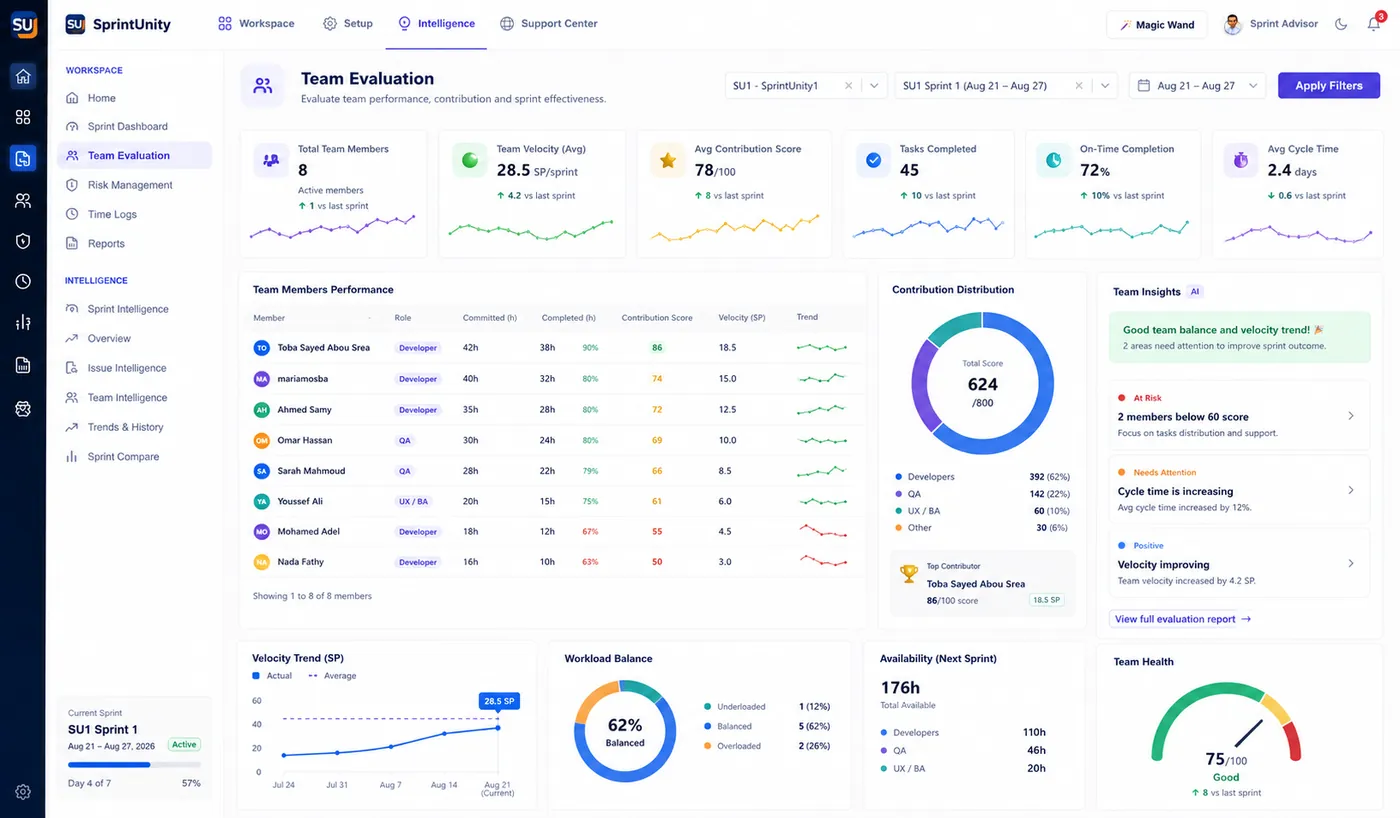
This page focuses specifically on the wizard. For the full Team Evaluation picture — Evaluation Members, running a period, scoring one person, Contribution Statistics, and Evaluation History — see Team Performance & Evaluation.
Step 1 — Evaluation Period
Pick a recurring cycle length: Every 2 Weeks (14 days, recommended), Every 3 Weeks (21 days), or Monthly (30 days). An info bar confirms every evaluation aligns to start from the period's start date, and previews the next period's exact date range.
Step 2 — Roles & Evaluators
A table of all 9 evaluation roles. For each role you set its Evaluator Role (a free-text label — who typically evaluates this role) and its Contribution Ratio (0–100%); the Manual Score Ratio column is always the automatic remainder (100 − Contribution Ratio) and can't be edited directly. The two must always sum to 100% per role.
| Role | Default evaluator |
|---|---|
| Developer | Team Lead |
| Team Lead | Technical Manager |
| DevOps | Technical Manager |
| QA Engineer | QA Manager |
| Business (BA / PO) | BA Manager |
| Manager / Admin Role | Administrator |
| Technical Manager | Administrator |
| QA Manager | Administrator |
| BA Manager | Administrator |
These 9 roles are a fixed catalog — custom roles beyond this list aren't supported yet, since criteria and history are tied to these specific role codes. A newly-configured role defaults to a 50% / 50% Contribution / Manual split until you change it.
Step 3 — Automatic Contribution
Two independent choices that shape what "Contribution" means for everyone:
Which interactions count
7 interaction types are shown as toggles: Created, Reporter, Assignee (Current) — plus Status Transition, Comment, Linked Issue, and SprintVote Vote. Only the first 3 actually feed real counted data today; the other 4 are visible in the design but not yet counted — an honest gap the app surfaces rather than hides, in this step's own summary text.
Which issue types are included
Defaults to the 5 standard Jira types (Bug, Epic, Story, Task, Sub-task). A "Manage Issue Types" dialog lets you select all, clear all, reset to standard-only, or hand-pick custom types your project uses — nothing is counted for a type that isn't included here.
This step doesn't set anyone's actual Contribution Score — it only decides what data the "Fetch Contribution Data" button (used later, during scoring) is allowed to count. The Contribution Score itself is still a number the evaluator enters by hand, informed by that fetched data — not something this step computes for them.
Step 4 — Manual Criteria
Pick a role from the left-hand list, then edit its criteria table: Criteria name, an optional Description, and a Weight (%) per row. Add or delete rows freely (EvaluationSetup.EditCriteria / EvaluationSetup.DeleteCriteria), or click Load Standard Criteria to instantly load SprintUnity's 10 built-in default criteria for that role. Every role's criteria weights must sum to exactly 100% before the setup is usable.
Every one of the 9 roles ships with the same 10-criterion default template (only the wording changes to fit the role) — weights: 15%, 15%, 15%, 10%, 10%, 10%, 5%, 5%, 5%, and a final 10% "Overall Performance" catch-all. For example, the Developer default set is Technical Knowledge (15%), Code Quality (15%), Problem Solving (15%), Team Collaboration (10%), Communication (10%), Ownership (10%), Initiative (5%), Learning & Improvement (5%), Time Management (5%), Overall Performance (10%).
Step 5 — Review & Save
A full summary before saving: 4 cards (Evaluation Period, Roles & Evaluators, Automatic Contribution, Manual Criteria), a plain-language "What This Setup Means" explanation generated from your actual configuration (not canned text), a Scoring Formula box with a donut chart of the average Contribution/Manual split across all roles, and an Export Summary button that downloads a plain-text recap of the whole configuration.
Final Score = (Automatic Score × Contribution Ratio) + (Manual Score × Manual Score Ratio) — the exact same formula the backend uses to compute every real score, word for word.Permissions
| Permission | What it controls |
|---|---|
EvaluationSetup.View | See the Evaluation Setup wizard |
EvaluationSetup.Edit | Change the evaluation cycle length, roles, or automatic contribution settings |
EvaluationSetup.EditCriteria | Add or edit manual criteria for a role |
EvaluationSetup.DeleteCriteria | Remove a manual criterion from a role |
This is 4 of the 12 total permissions covering Team Evaluation as a whole — the rest gate running periods, member configuration, and history. See Team Performance & Evaluation for the full permission table.
Magic Wand — one panel per step
Every step of the wizard is individually selectable with Magic Wand — click a panel while it's armed and get a structured explanation of just that step's own current configuration, not the whole wizard. Same rule-based, no-LLM approach used everywhere in the app.
Ask Sprint Advisor about this
| Skill | What it actually does | Permission |
|---|---|---|
| Explain this page | General orientation to the wizard | EvaluationSetup.View |
| "Explain this step" | Available only inside the wizard — explains whichever of the 5 steps you're currently on | EvaluationSetup.View |
| "Show evaluation weighting for each role" | Tenant-wide — no project or period needed. Reports each role's real Contribution/Manual split and its enabled criteria weights, straight from the same table this wizard edits | Evaluation.View |
How anyone with access gets value out of this
What's deliberately left out, and why
- Only 3 of the 7 interaction types shown in Step 3 (Created, Reporter, Assignee) actually feed counted data today — Status Transition, Comment, Linked Issue, and SprintVote Vote are visible toggles but don't yet count anything, a gap the step's own summary text surfaces.
- The 9 evaluation roles are a fixed catalog — you can't add a 10th custom role, since criteria and history are tied to these specific role codes.
- This wizard doesn't configure who gets evaluated or by whom specifically — that's Evaluation Members, a separate screen. See Team Performance & Evaluation.
Rating this page
Anyone reading this documentation can mark whether it answered their question — no permission required. It doesn't change anything in the app; it just helps the SprintUnity team prioritize which pages to improve next.