Team Management
Team Management is a two-tab hub: Teams, where you create teams and manage who's on them, and Contribution Statistics, which reuses the same statistics view found under Team Evaluation. This page covers the Teams tab in depth — for how contribution scores themselves are calculated, see Team Performance & Evaluation.
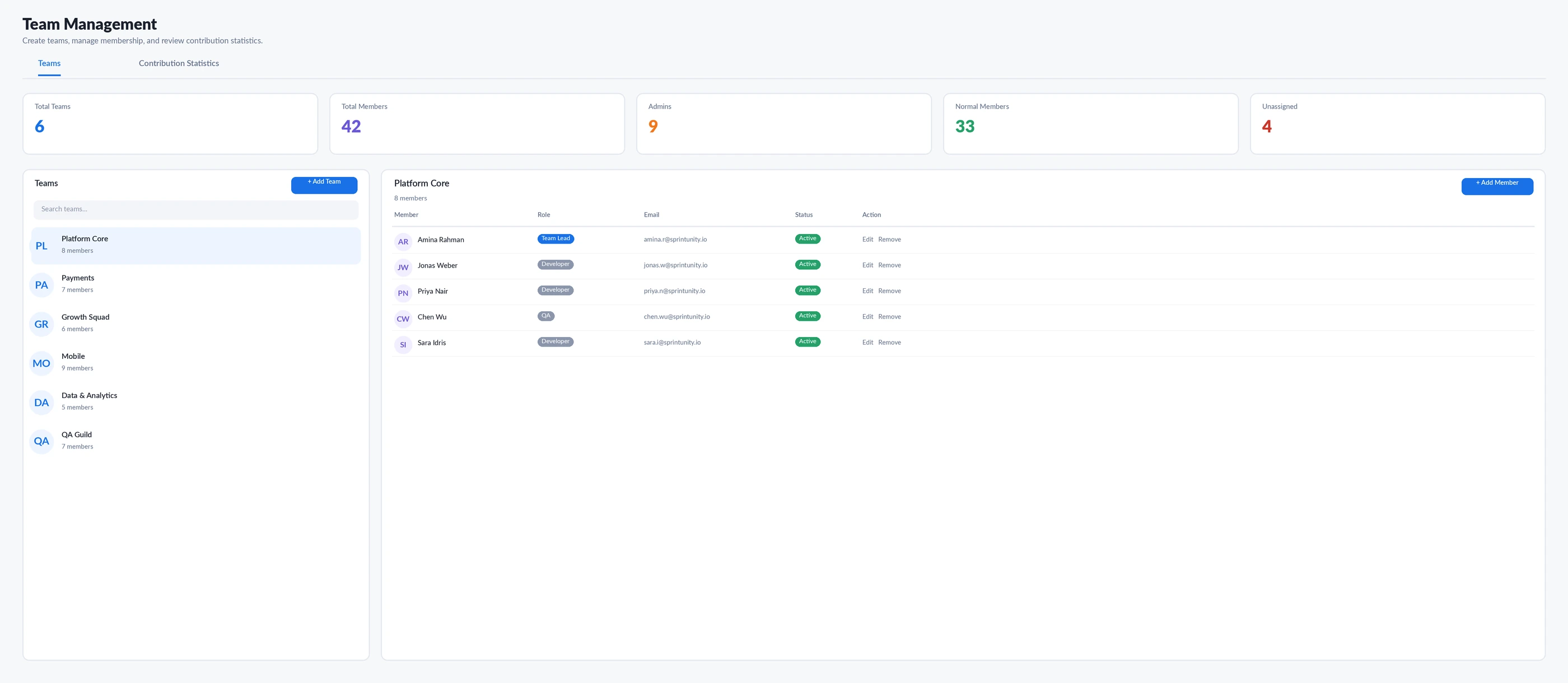
The Teams tab, top to bottom
5 KPI cards
Total Teams, Total Members, Admins, Normal Members, and Unassigned — all tenant-wide counts, recalculated live from every team's actual roster rather than cached.
Left panel — team list
Search box, a scrollable list of teams (avatar built from the team's code or name initials), and an "+ Add Team" button that opens a modal for name, code, and description. Selecting a team loads its roster into the right panel.
Right panel — members table
Paginated at 8 rows per page, searchable, columns for Member, Role, Email, Status, and Action. "+ Add Member" opens a picker that already excludes anyone already on that specific team.
Add Member modal's own hint text
Shown verbatim in the app: "Their Role and whether they can belong to more than one team comes from their Sprintunity Role (User Roles page) — members with no role assigned yet default to Normal (one team only)."
Create / edit / delete a team
Name, code, and description via a modal, gated by TeamManagement.Manage. Deleting a team asks for confirmation first.
Remove a member
Removes them from that specific team's roster only — it doesn't touch their Sprintunity Role or their standing on any other team. Also gated by TeamManagement.Manage, with a confirmation step.
Contribution Statistics tab
The second tab reuses the same Contribution Statistics view that appears under Team Performance & Evaluation, gated by its own separate permission (ContributionStatistics.View) rather than TeamManagement.View. See Team Performance & Evaluation for how those contribution numbers are actually calculated.
Permissions
| Permission | What it controls |
|---|---|
TeamManagement.View | See the Teams tab, the team list, and every roster |
TeamManagement.Manage | Create, edit, or delete a team; add or remove members |
ContributionStatistics.View | See the Contribution Statistics tab |
Same View-vs-Manage split used across Role-Based Access Control: you can be given visibility into the team roster without being trusted to change it.
Magic Wand — one page-level panel
A single teamManagement panel, reading {totalTeams, totalMembers, unassignedMembers, hasSelectedTeam} — it reports the headline counts and flags whether any members are currently unassigned to a team at all.
Ask Sprint Advisor about this page
| Skill | What it actually does | Permission |
|---|---|---|
| Explain this page | General orientation to the Teams and Contribution Statistics tabs | TeamManagement.View |
teamManagementSummary | Total team and member counts, with the Admin-type vs. Normal-type member split | TeamManagement.View |
teamRosterOverview | Lists every team with its member count, identifies the largest team, and flags any teams with zero members | TeamManagement.View |
How anyone with access gets value out of this
What's deliberately left out, and why
- The multi-team-membership rule isn't explained anywhere on this page except the Add Member modal's hint text — a blocked add can look like a bug if you haven't seen that hint.
- There's no bulk import or CSV upload for team rosters — every member is added one at a time through the modal.
- Deleting a team doesn't reassign or warn about its members' evaluation history elsewhere in the app; it only removes the team record and its roster.
Rating this page
Anyone reading this documentation can mark whether it answered their question — no permission required. It doesn't change anything in the app; it just helps the SprintUnity team prioritize which pages to improve next.