Notification Center
Notification Center is an in-app alert feed built on the same underlying data as Sprint Advisor's "top concerns" skill — Risk Management, Sprint Intelligence, and Team Intelligence, unified into one list. It's reached only through the bell icon in the top bar, not from the sidebar — opening it actually hides the sidebar entirely for the duration.
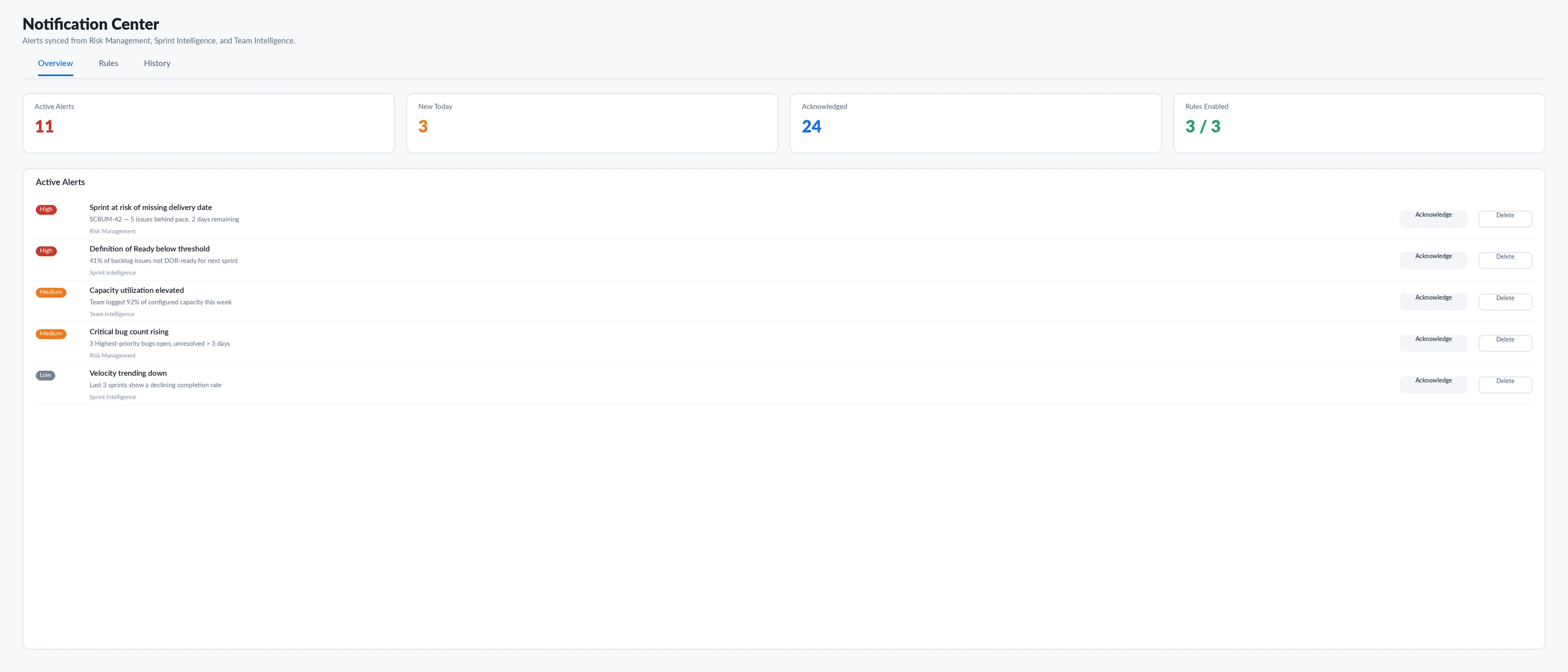
Notifications.View is referenced in the frontend to gate this page, but it was never seeded into the backend permission catalog — it doesn't exist as a row that Permission Grants can turn on for any role. In practice, that means only APP_ADMIN can open Notification Center today, because APP_ADMIN's access is a hardcoded, code-level bypass that doesn't check the permission catalog at all. No custom role, however Admin-type or broadly permissioned, can currently be granted access to this page through Permission Grants. This is a genuine, verified gap in the app as shipped — not a documentation omission.How it's reached — no sidebar entry
Notification Center is the one destination in this whole Admin & Setup section that isn't a sidebar item in the app itself — clicking the bell icon in the top bar opens it, and the sidebar hides while it's open. It's listed here in the docs sidebar for discoverability, not because the real app nav places it here.
The three tabs
Overview
4 KPI cards — Active Alerts, New Today, Acknowledged, Rules Enabled — plus the Active Alerts list itself, each row with Acknowledge and Delete actions.
Rules
One toggle per source — Risk Management, Sprint Intelligence, Team Intelligence — each with its own label and description. Turning a source off stops new alerts from that source appearing; it doesn't retroactively remove ones already listed.
History
The full alert record, paginated, showing a status badge per row: Active, Acknowledged, or Resolved.
Severity — 3 tiers, not 4
Alerts use exactly the three severity tiers the underlying concerns engine actually produces — High, Medium, Low. There is no fourth "Critical" tier here, even though some other pages in SprintUnity (like Action Center) do use a Critical bucket for their own, differently-defined data.
How sync actually works
Deleting an alert deletes the record, not the condition. Per the code's own comment: if you delete an alert but the thing it was reporting on is still true the next time this page syncs, it will simply come back as a new row. Use Acknowledge for "I've seen this and I'm on it" — Delete is for cleaning up alerts you never want to see again, understanding they may reappear.
Where rule toggles are stored
Per-source on/off toggles are saved through the same generic settings mechanism General Settings uses, tenant-wide only — there's no per-user or per-project rule configuration. Turning off Sprint Intelligence alerts turns them off for everyone in the tenant.
Permissions
| Permission | What it controls |
|---|---|
Notifications.View | Referenced in the frontend to gate the entire page — not currently present in the seeded permission catalog (see the callout above) |
There's no separate Acknowledge/Manage/Delete permission split visible in the code — the page is designed around a single View gate, which today only APP_ADMIN can ever hold.
Magic Wand — one panel per tab
Overview panel — notifOverview
Reports the live active/acknowledged/new-today counts and how many of the three sources currently have their rule enabled.
Rules panel — notifRules
Explains what each source toggle actually affects, and which ones are currently on or off.
History panel — notifHistory
Summarizes the full record — counts by status (Active/Acknowledged/Resolved) across everything that's ever synced in.
Ask Sprint Advisor about this page
There's no dedicated Sprint Advisor skill for Notification Center — asking Advisor to explain this page falls back to the same generic default used elsewhere for pages without their own skills: "I don't have a specific explanation for this page yet, but you can ask about permissions, sprints, or reports elsewhere in the app." The Magic Wand panels above are the more useful source of in-context help here.
How anyone with access gets value out of this
What's deliberately left out, and why
- The big one:
Notifications.Viewwas never seeded into the permission catalog, so only APP_ADMIN's hardcoded bypass can open this page today — no custom role can be granted access through Permission Grants, verified across the Permission component's own gate logic, the permission-resolution order documented in the repository code, and an exhaustive search of every seed file in the database. - No email, Slack, Teams, or any other delivery channel — this is strictly an in-app feed, reached only via the bell icon.
- No digest or batching — alerts appear individually as they sync, there's no daily or weekly rollup.
- Deleting an alert doesn't resolve or suppress its underlying condition — see "Deleting an alert" above.
Rating this page
Anyone reading this documentation can mark whether it answered their question — no permission required. It doesn't change anything in the app; it just helps the SprintUnity team prioritize which pages to improve next.