Sprint Issue Vote
Estimate together. Commit with confidence. Sprint Issue Vote is the panel that opens directly on a Jira issue — every team member estimates it, and the whole team sees where they land before anything is finalized.
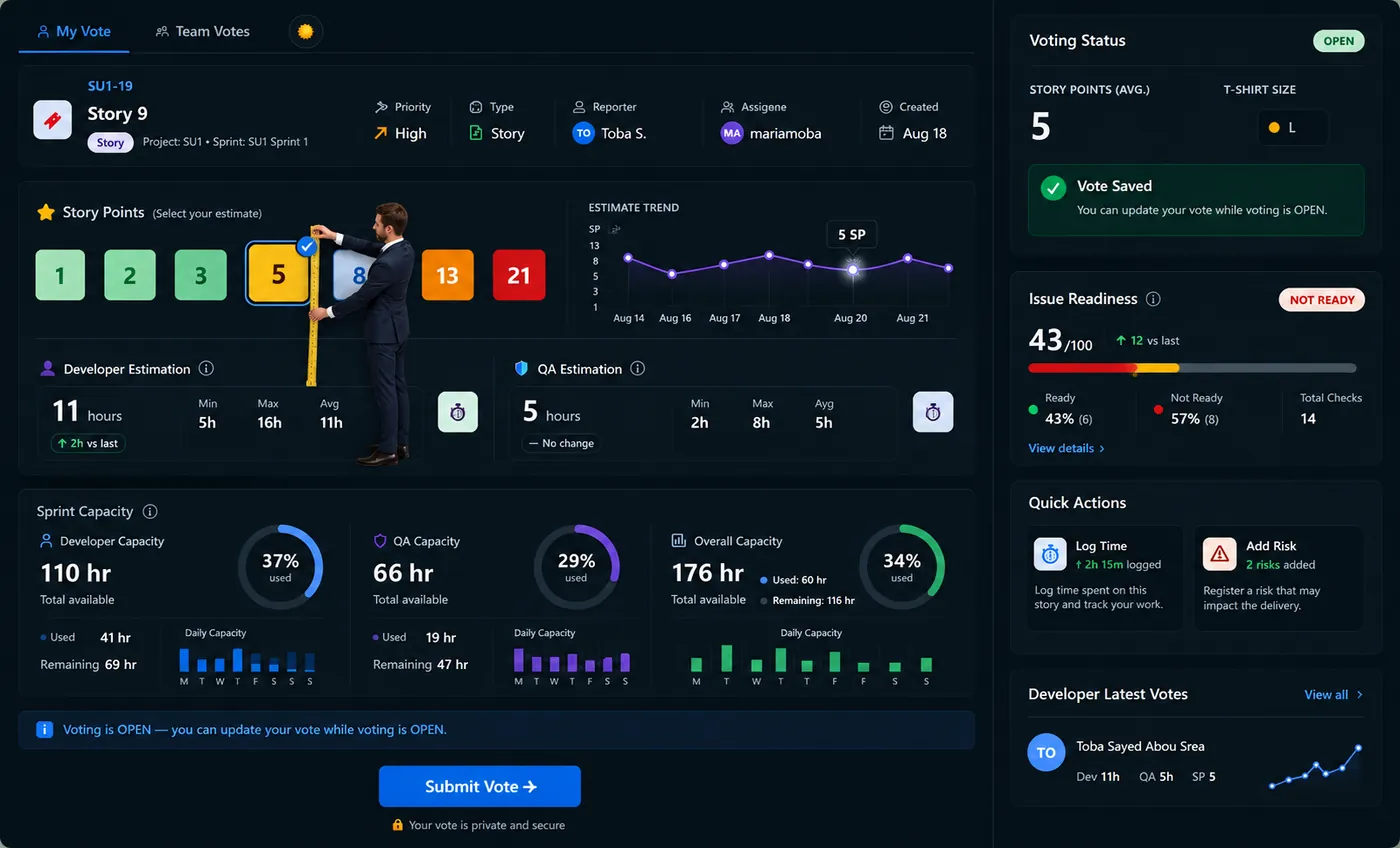
The 3 tabs, in depth
The panel has no separate page navigation — everything happens across exactly three tabs. Here's exactly what each one does.
1. My Vote
Your own estimate for this issue. Always visible to everyone with access to the issue.
Pick a story-point card, or type hours directly
Clicking a story-point card automatically splits its hour value 70% Dev / 30% QA for you. Prefer to be precise? Type Developer and QA hours directly instead — the story point is then derived from the total.
See sprint capacity while you decide
Donut rings show Dev, QA, and Overall capacity used so far in the sprint — so you're estimating with the team's real remaining bandwidth in view, not in a vacuum. See Sprint Capacity Planning for exactly how that's calculated.
See this issue's Definition of Ready score alongside your vote
An Issue Readiness card sits right next to the vote controls, showing the same live score covered in Definition of Ready (DOR) — so a low-readiness issue is visible before you commit an estimate to it, not discovered afterward.
Submit
One click saves your vote. You can change it anytime while voting stays open — each change updates the same row rather than creating duplicates.
2. Team Votes
Everyone's estimate, side by side, updating live.
KPI strip
Four numbers at a glance: how many developers have voted, the recommended story points, the consensus percentage, and the average estimate.
Per-voter table
Every voter's row: Dev hours, QA hours, story points, and size — plus an "Average Estimation" summary row and an export option.
Consensus status line
A plain "Consensus Reached ✅" or "Discussion Needed ⚠️" label, calculated automatically (see the formula below).
3. Vote Settings — setting the final result, closing, and reopening
Only visible to Team Leads and admins — this tab is permission-gated and won't appear for a regular voter.
Recommended Evaluation card (read-only)
Five numbers computed from the team's votes: Story Points, Estimated Size, Avg Dev Time, Avg QA Time, and Total Estimate. This card never changes what's saved — it's the starting point for the card below.
Final Evaluation card (editable)
What actually gets recorded on the issue: Development Time, QA Time, a Story Points dropdown, and Estimated Size. You can either edit Development Time / QA Time directly — Story Points and Size recalculate live from your typed hours, through the same tier table covered below — or pick a Story Points value from the dropdown, which fills Development Time and QA Time for you using a 70/30 split of that tier's typical hour budget. Whichever direction you use, the final numbers are yours to set; the recommendation is a starting point, not a lock.
Start Voting / Stop Voting
One toggle button, labeled for whichever action applies right now. Stopping requires SprintVote.Close; starting or reopening requires SprintVote.Open — the same two permissions the backend checks, so what you see in the UI always matches what you're actually allowed to do. A confirmation dialog spells out the effect before you click: stopping tells you developers can no longer submit or update votes; starting again tells you they'll be able to.
Update & Close
Saves the Final Evaluation card's values as the issue's locked-in estimate and closes voting — a separate action from Stop Voting, requiring SprintVote.Close. Its confirmation dialog is explicit: "the Jira issue will be updated and voting will become read-only."
How the numbers are calculated
Nothing here is guesswork — here's the exact math behind every figure you'll see:
| Hours (Dev + QA) | Story Points | Size |
|---|---|---|
| Up to 2h | 1 | XS |
| Up to 4h | 2 | S |
| Up to 8h | 3 | M |
| Up to 16h | 5 | L |
| Up to 32h | 8 | XL |
| Up to 60h | 13 | XXL |
| Up to 999h | 21 | XXXL |
This is the default tier mapping — your tenant admin can configure a different one under Story Point Mapping, per project. Whichever card you click, or whatever hours you type, always lands in one of these tiers.
The Story Point Mapping setting — how it changes these numbers
Found under Setup → Sprint Admin → Story Point Mapping, the first of the same three admin tabs that hold Sprint Capacity and Issue DOR. It's configured per project — pick a project, and its table shows either a saved custom mapping or, if nothing's been saved yet, the built-in defaults above with a plain "Using recommended defaults (not saved)" label so it's never ambiguous which one is actually in effect.
Editable tier rows
Each row has a Story Points value, a Max Hours ceiling (the minimum for each tier is derived automatically from the row below it), a Size label, and an Enabled toggle. + Add Mapping adds a tier, a delete action removes one, and Restore Defaults resets the whole table back to the built-in 7 tiers in one click.
Validation before you can save
A validation banner checks the table's shape (no overlapping or out-of-order ranges) before Save Changes — gated by the StoryPointMapping.Edit permission — is even clickable.
Every hours-to-points conversion in the app uses this exact table
My Vote's live story-point suggestion as you type hours, Team Votes' Recommended SP, and Vote Settings' Recommended Evaluation card all call the same conversion function against this project's saved tiers (or the defaults, if none are saved). Change the mapping, and every one of those live calculations for that project changes with it — instantly, without touching anything already closed.
Recommended SP
Calculation: average of every voter's total hours (Dev + QA), then mapped through the tier table above. Benefit: one number the team can rally around without anyone doing the math by hand.
Consensus %
Calculation: (number of voters who landed on the most common story-point value) ÷ (total voters) × 100. Example: if 4 of 5 voters land on 5 SP and 1 lands on 8 SP, that's 4 ÷ 5 = 80%. Benefit: tells you how close the team actually is, not just what the average says.
Consensus Reached (yes/no)
Calculation: true only when every single voter's story-point value is identical — a strict, binary check, not a threshold like "80% agree." Benefit: no ambiguity about whether a discussion is actually needed.
The full lifecycle
Open
A Team Lead clicks Start Voting from the Vote Settings tab (SprintVote.Open). The issue becomes votable for everyone with access.
Vote
Team members cast and revise estimates on My Vote. Everyone can watch progress live on Team Votes.
Stop (optional, reversible)
A lead can click Stop Voting (SprintVote.Close) to pause submissions without finalizing anything — Start Voting brings it back to open at any time.
Close
The Team Lead sets the Final Evaluation values (typing hours, or picking a Story Points tier), reviews the confirmation dialog, and clicks Update & Close (SprintVote.Close). The final Dev/QA hours, story points, and size are written to the issue, and voting becomes read-only.
Reopen (optional, admin-gated)
A closed vote can be reopened for a fresh round (SprintVote.Open) only if the tenant's Allow Vote Reopen setting permits it — otherwise the tab tells you to ask an admin to enable it, and the vote stays read-only.
Every action is recorded
Every vote, edit, and close is written to a permanent, append-only history — vote cast, vote updated, session closed, session reopened, or vote deleted are all individually logged, so you can always answer "who voted what, and when."
Ask Sprint Advisor about this issue
Because Advisor is docked on this same panel, it already knows which tab you're on. Real questions you can ask, tab by tab:
On My Vote
"What's my current vote?" — a quick read-back of what you've submitted so far.
On Team Votes
"What's the vote status for this issue?" and "Which votes differ most from the team?" — surfaces outliers without you scanning the table by hand.
On Vote Settings
"Should I close voting on this issue?", "How does the final evaluation compare?", "Show vote history for this issue", "Is this issue ready for the sprint?" — plus one-line explanations of what Start/Stop Voting and Update & Close actually do before you click them.
See AI Sprint Assistant for how Advisor works and what it deliberately doesn't do.
Rating this page
Anyone reading this documentation can mark whether it answered their question — no permission required. It doesn't change anything in the app; it just tells the SprintUnity team which pages need more detail.